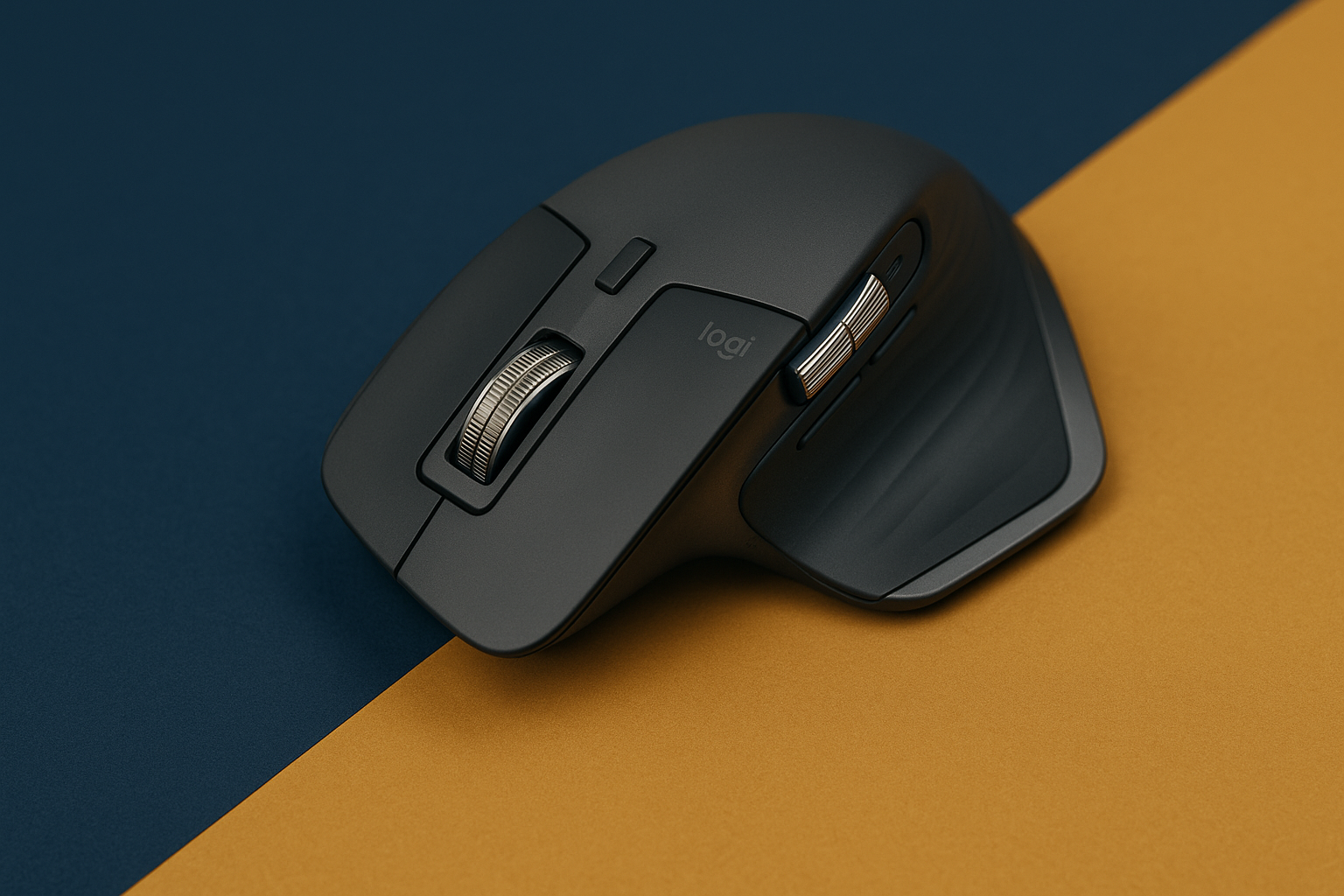
MX Master 3S Hidden Features Most People Never Use
MX Master 3S Hidden Features Most People Never Use
The Hidden Features of the MX Master 3S Most People Never Use
Most people pull the MX Master 3S out of the box, plug it in, and use it like any other mouse. That's leaving real time on the table. This device ships with a system of features that compounds your output across every hour you sit at a desk. Here's what those features actually do, and how to put them to work.
Why the MX Master 3S Is Worth a Closer Look
The design looks clean, but that's not the point. The real answer is in how the features stack. Solo operators and developers who actually dig into the settings report shaving several minutes off repetitive tasks every single day. At five minutes a day, that's over thirty hours a year returned to you. That's the kind of thing that compounds quietly, while you sleep, without you doing anything extra once the system is set up.
Let's walk through the features that make this possible, starting with the Logitech MX Master 3S, available on Amazon.
1. Flow Cross-Computer Control
Flow lets you move your cursor across two computers as if they share one screen. You drag files directly between machines. No emailing documents to yourself, no USB drives, no friction. For anyone running a content operation or managing separate work and personal setups, this is the feature that changes the daily count of small interruptions.
- Setup: Install the Logitech Options software on each device.
- Connect: Make sure all devices are on the same Wi-Fi network.
- Activate: Enable Flow inside the software settings.
Flow is a good example of a feature that compounds. Each individual save is small. Across a month of real work, the receipts add up.
2. MagSpeed Electromagnetic Scrolling
MagSpeed lets you scroll through thousands of lines in a couple of seconds. That sounds minor until you spend a day inside a long spreadsheet or a dense codebase. The precision at slow speeds is just as good as the velocity at fast ones. You get both in the same wheel, with no mode switching.
For developers and content creators who live inside long documents, the time this saves compounds across every working session. It redirects your attention toward the work that actually moves things forward.
3. Customizable Buttons and Gestures
This is where you build your own system. Every button on the MX Master 3S can be mapped to a specific action through the Logitech Options software. Open an app, switch desktops, trigger a shortcut — whatever fits your workflow.
- How to Customize: Open Logitech Options and map each button to your preferred function.
- Example Use: Set the thumb button to toggle between virtual desktops or launch your most-used app.
Once you've mapped the buttons to match how you actually work, you stop reaching for the keyboard for the small things. That's owned efficiency — a system you built once that runs quietly every day after.
Fitting the MX Master 3S Into a Larger Productivity System
Building owned traffic and systems that produce results while you sleep requires tools that don't slow you down. The MX Master 3S fits that picture when you pair it with the right software and a clear workflow.
1. Paired with AI Content Automation
Tools like Jasper or Writesonic handle content drafts, but the real answer to managing that output efficiently is a setup where your tools talk to each other. With Flow active, you can research on one machine and draft on another without breaking your stride. The mouse becomes the connector between two parts of the same system.
You move the cursor to the edge of one screen and it appears on the next. That's it. No clicks, no switching inputs.
2. Building a Mobile App for Beginners
If you're working through design software for the first time, precise cursor control matters more than most people expect. The MX Master 3S gives you that control, and the customizable buttons let you map your most-used design actions so you're not hunting through menus. It lowers the friction on the learning curve without changing the work itself.
Actionable Next Steps
You don't need to use every feature on day one. Start with Flow if you run two machines. Start with button mapping if you repeat the same actions dozens of times a day. Pick one, set it up, and let it run.
- Purchase the Logitech MX Master 3S to get started.
- Install the Logitech Options software to access the full feature set.
- Explore our tutorials for more on building systems that produce results while you sleep.
The goal is always the same: build a system that compounds, then let it run. The MX Master 3S is one piece of that. For more on putting the full picture together, visit The Silent Webmaster blog.
Advanced Workflow Optimization with MX Master 3S

The out-of-box setup gets you most of the way there. But if you want the full receipts on what this mouse can do, here are the features most users never touch — and the specific situations where each one earns its keep.
4. SmartShift Technology
SmartShift reads how fast you spin the scroll wheel and adjusts the mode automatically. Spin it slowly and you get line-by-line precision. Flick it and the wheel goes into free-spin, covering thousands of lines in a second. No button to press. No setting to toggle mid-task.
- Activation: Enable SmartShift in the Logitech Options software.
- Usage: Spin slowly for precision, flick for speed.
- Applications: Ideal for large spreadsheets or long documents where you need both modes in the same session.
The time you save navigating complex data sets is time you can put toward decisions that actually move the work forward. That's the real answer to why this feature matters.
5. Darkfield High Precision Tracking
The MX Master 3S tracks accurately on glass surfaces at least 4mm thick. For remote workers who set up in hotels, coffee shops, or anywhere without a proper desk, that's a meaningful detail. You don't carry a mouse pad. You just work.
- Surface Compatibility: Works on glass surfaces with at least 4mm thickness.
- Setup: No additional setup required — the feature is built in.
- Benefit: Keeps your system intact regardless of where you're working that day.
Consistency is what makes a system reliable. Darkfield tracking means the tool performs the same whether you're at your desk or across the country.
Ergonomic Design for Extended Use
The shape of the MX Master 3S is built for long sessions. The contour supports your hand and wrist. The buttons sit where your fingers already rest. You're not reaching or adjusting — you're just working.
- Comfort: Contoured shape reduces wrist and hand strain over long sessions.
- Button Placement: Positioned to minimize hand movement and keep you in flow.
- Long-term Use: Designed to reduce fatigue across full workdays, not just short sprints.
For solo operators putting in long hours, physical comfort is part of the system. Fatigue costs you output. The ergonomics here are built to keep that cost low.
Quick-Switch Device Connectivity
One button on the bottom of the mouse cycles through up to three paired devices. Laptop, desktop, tablet — you control all three with the same mouse. No unplugging, no re-pairing, no extra hardware on your desk.
- Device Pairing: Use the Easy-Switch button to move between devices.
- Practical Use: Useful for anyone balancing work across a laptop, desktop, and tablet.
- Efficiency: Clears desk space and removes the need for multiple peripherals.
Fewer interruptions mean more time in the work. Quick-switch connectivity keeps the system clean and the focus where it belongs.
FAQs: Getting the Most from the MX Master 3S
- Q: Can I use the MX Master 3S with non-Logitech devices?
A: Yes. It connects via Bluetooth or the Unifying USB receiver, so it works with any compatible device regardless of brand. - Q: How often should I update the Logitech Options software?
A: Update regularly. Each release can add features or fix issues that affect how the system performs. - Q: Is the MX Master 3S suitable for left-handed users?
A: The design is built for right-handed use. Left-handed users may want to look at alternative models before committing.
Once you understand what each feature actually does, the MX Master 3S stops being just a peripheral and starts being a working part of your productivity system.
Power Management and Battery Life
The MX Master 3S runs up to 70 days on a full charge. If you're caught low, one minute on the cable gives you three hours of use. The mouse also drops into a low-power mode automatically when you step away, so the battery isn't draining while you're not at your desk.
- Battery Life: Up to 70 days on a full charge.
- Quick Charging: One minute of charging delivers three hours of use.
- Power-Saving Mode: Activates automatically during periods of inactivity.
A tool that runs out of power mid-session breaks the system. These numbers mean that, in practice, battery is one less thing you need to think about.
Disclosure: this article may contain affiliate links. If you buy through them, we may earn a small commission at no extra cost to you.