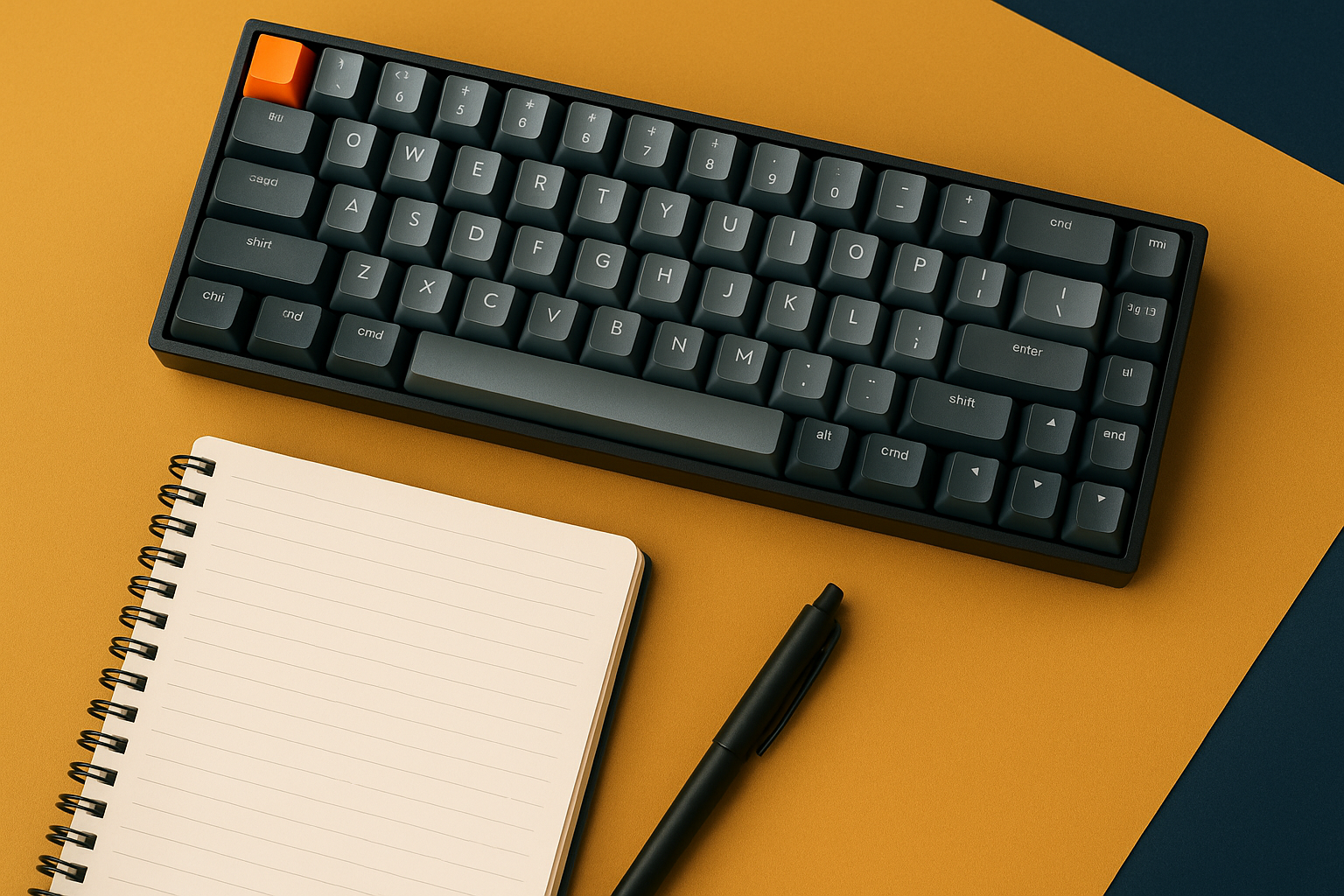
Keychron K2 Review: The Best Keyboard for Long Writing Sessions
Keychron K2 Review: The Best Keyboard for Long Writing Sessions
A freelance writer clocked six-hour sessions, five days a week, for a full year — zero wrist braces, zero keyboard swaps. The tool she used the whole time was the Keychron K2. That's not a coincidence. It's what happens when your equipment is part of a real system — one that compounds your output quietly, session after session, while you sleep on the gains from the work you already put in. Here's exactly how the receipts add up.

Why Keychron K2 Stands Out
She wrote an entire novel on a Keychron K2. No wrist strain. No mid-project keyboard swap. Just one tool doing its job, session after session. The K2 isn't popular because it photographs well on a desk. It's built to hold up under real volume. Here's what's actually doing the work:
- Gateron Mechanical Switches: Available in red, blue, or brown, these switches give you tactile feedback on every keystroke. Writers who've used membrane boards for years notice the difference inside the first hour.
- Compact Design: The 75% layout keeps function keys and arrow keys intact while cutting the footprint down. Your mouse stays closer. Your shoulders stay relaxed.
- Wireless and Wired Options: Bluetooth connects to up to three devices. USB-C handles wired. You pick based on your setup, not the keyboard's limitations.

The K2 has the receipts. It's a proven system that writers and developers have trusted across thousands of real working hours. If you're serious about your output, the tool matters.
Setting Up Your Keychron K2 for Maximum Productivity
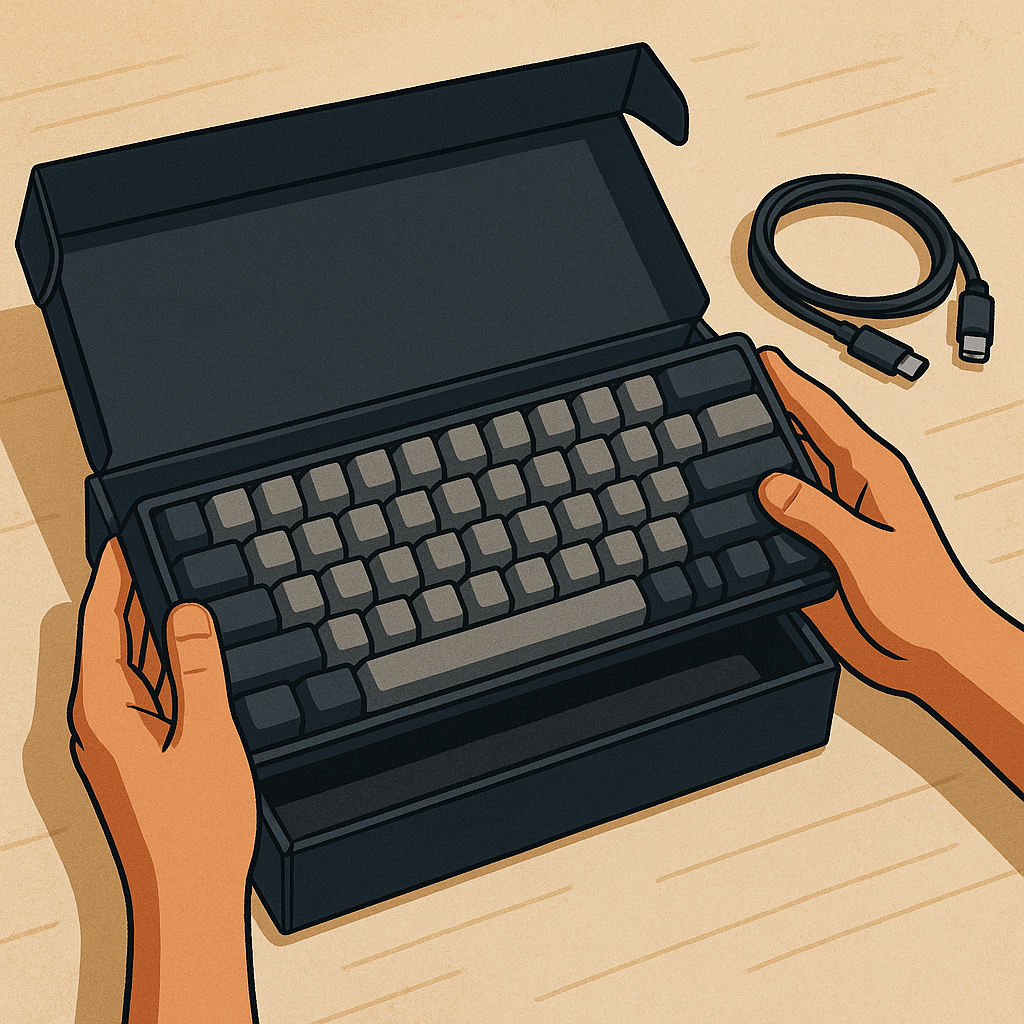
Setup takes about ten minutes. Here's the exact sequence:
- Unbox and Inspect: Confirm you have the keyboard, USB-C cable, keycap puller, and user manual. All four should be in the box.
- Choose Your Mode: Stationary desk? Wired is cleaner. Moving between locations? Bluetooth is the right call.
- Pair via Bluetooth: Hold the function key plus 1, 2, or 3 to assign each device slot. The lights flash, then hold steady. You're connected.
- Swap Keycaps if Needed: Use the included puller to pull and replace any keycaps. Takes thirty seconds per key.
Once it's dialed in, the K2 stops being a peripheral and starts being part of your system. The kind of system that keeps producing while you sleep, because the work you put in today compounds into tomorrow's output.
Comparing Keychron K2 with Other Keyboards
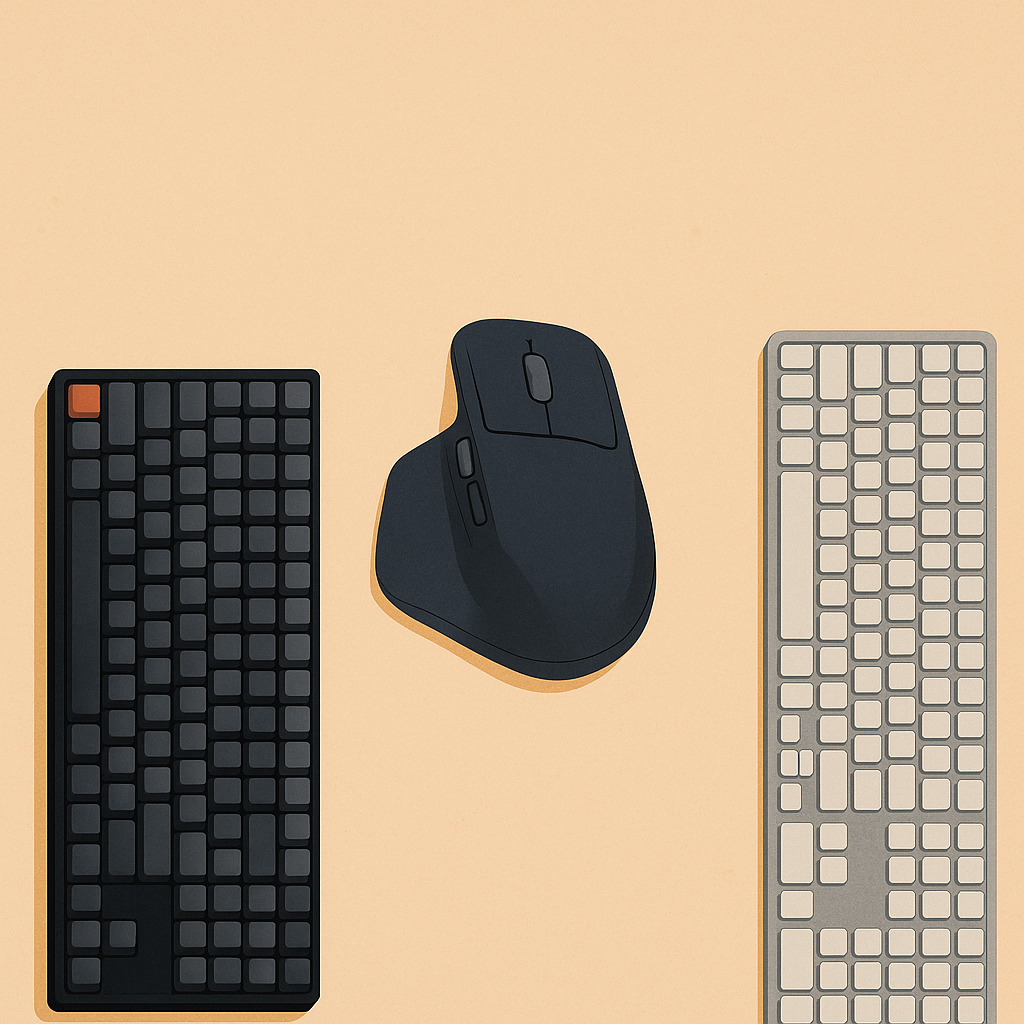
It's a fair question — how does the K2 hold up against something like the Logitech MX Master 3S or a standard membrane board? Here's the honest breakdown:
- Typing Experience: Mechanical switches give you a defined actuation point on every key. Membrane boards feel soft by comparison — you're guessing when the key registers.
- Portability: The K2's 75% layout travels better than full-size mechanical boards. It fits in most laptop bags without forcing anything.
- Battery Life: The MX Master 3S runs longer between charges. That's a real trade-off. For writers who care about feel over battery stats, the K2 still wins the session.
The real answer depends on what you're optimizing for. If writing volume and typing accuracy are the priority, the tactile feedback of the K2 is worth more than a few extra hours of battery.
Why Invest in the Keychron K2?
Buying a K2 isn't just buying a keyboard. It's adding a reliable piece to a workflow that's supposed to run efficiently — including the hours when you're not at the desk. When your tools are solid, your owned traffic and your output systems run without friction. That matters whether you're writing for clients or building something that earns while you sleep.
If you're building passive income websites or working through how to build a mobile app for beginners, the hours you put in are long. The right equipment keeps you in the chair longer, with less physical cost. The K2 earns its place in that setup.
Conclusion: Take the First Step Towards Better Productivity
The K2 is a straightforward piece of a larger system. It's reliable, it's comfortable across long sessions, and it has the receipts to back up the claims — thousands of writers and developers who've put real hours on it. If you're ready to tighten up your workspace, the Keychron K2 is a clear next step.
For more on building systems that compound over time, head to The Silent Webmaster — resources and guides built for people doing this work seriously.
Enhancing Ergonomics with the Keychron K2
Long hours are part of the job. The question is whether your setup is working against you. The K2 gives you a few built-in advantages, and a couple of easy additions make the difference between a two-hour session and a six-hour one:
- Keyboard Angle: The K2 ships with adjustable feet. A slight incline shifts the load off your wrists. Most people feel the difference within the first session.
- Wrist Rests: A wrist rest keeps your wrists neutral between keystrokes. It's a ten-dollar addition that protects a tool you use every day.
- Monitor Height: Top of the screen at eye level. This one's free — just adjust your monitor stand. It takes neck strain out of the equation and lets the ergonomic benefits of the K2 do their full job.
Get these three things right and you've built a workspace that supports the kind of sustained output that actually compounds into results.
Customizing Your Keychron K2 Experience
The K2 ships ready to use, but it also gives you room to dial it in further. Here's where you can go if you want it to fit your workflow exactly:
Keycap Customization
Keycaps are functional first, personal second. Here's what to know:
- Material Choice: PBT keycaps are more durable and have a textured feel that holds up over years of use. ABS keycaps are smoother and tend to shine with heavy use over time.
- Color Themes: Pick colors that match your desk or your brand. It sounds minor, but a workspace you actually like sitting at is one you use more consistently.
- Profile Variations: SA and DSA profiles offer different heights and angles. Try one if the stock profile doesn't feel right after a few weeks.
Firmware and Software Adjustments
For anyone who wants to go deeper:
- Remapping Keys: Software tools let you reassign any key. If you have shortcuts you hit fifty times a day, put them somewhere your fingers already go.
- Macro Programming: Advanced users can program macros to handle repetitive sequences automatically. Less time on mechanical tasks means more time on the work that actually moves things forward.
These adjustments let you shape the keyboard around your actual workflow rather than adapting your workflow to the keyboard.
Keychron K2: A Case Study in Productivity
Alex is a freelance writer and app developer running multiple projects at once. Before the K2, he was dealing with wrist pain and a higher-than-acceptable error rate. Here's what changed:
- Increased Accuracy: The tactile feedback of the Gateron switches gave him a clear signal on every keystroke. Fewer errors meant less time correcting and more time producing.
- Improved Comfort: A wrist rest and adjusted keyboard angle cleared up the wrist pain. He extended his daily writing sessions without the physical cost he was paying before.
- Enhanced Workflow: Remapped keys and a few macros cut the repetitive work out of his day. The time he recovered went back into output that actually compounds.
Alex's experience is a clean example of what happens when the right tool fits into a real system. The K2 isn't doing anything dramatic — it's just removing friction, session after session.
Frequently Asked Questions about Keychron K2
Is the Keychron K2 suitable for gaming?
Yes. The mechanical switches are responsive enough for gaming use. You won't get dedicated RGB lighting modes or programmable keys built for gaming profiles, but the typing experience holds up in fast-paced sessions. Writers who game on the side won't need a second keyboard.
How does the Keychron K2 handle device switching?
The K2 connects to up to three devices via Bluetooth. To switch, press the function key plus the number key — 1, 2, or 3 — assigned to each device. It's fast and clean. If you work across a laptop, a desktop, and a tablet, this is the feature that makes the K2 practical rather than just comfortable.
What is the battery life like on the Keychron K2?
Up to 72 hours of active typing, or roughly 7 days of normal use. That's enough to get through a full work week without thinking about charging. For long writing sessions, it's not a variable you need to manage.
Those are the numbers. Now you have what you need to decide whether the K2 fits the system you're building.
Disclosure: this article may contain affiliate links. If you buy through them, we may earn a small commission at no extra cost to you.