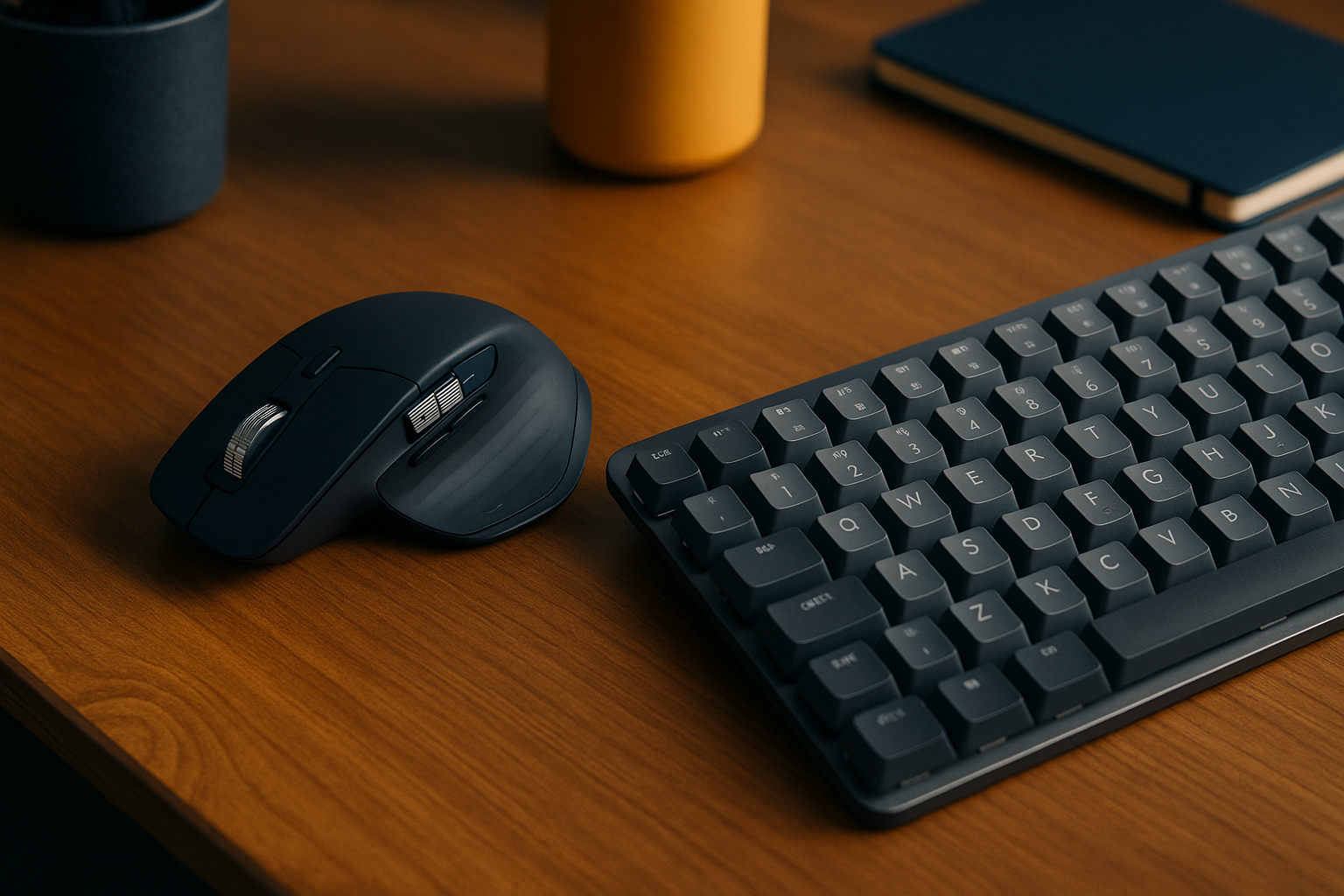
MX Master 3S vs MX Mechanical: The Quiet Operator's Desk Combo
MX Master 3S vs MX Mechanical: The Quiet Operator's Desk Combo
You sit down to work on your next project and the tools on your desk either slow you down or get out of the way. That's the whole story. The MX Master 3S and the MX Mechanical are built to get out of the way — quiet, precise, and set up to compound your output over time. Here's how the system works and why the combination makes sense.
MX Master 3S: The Silent Performer
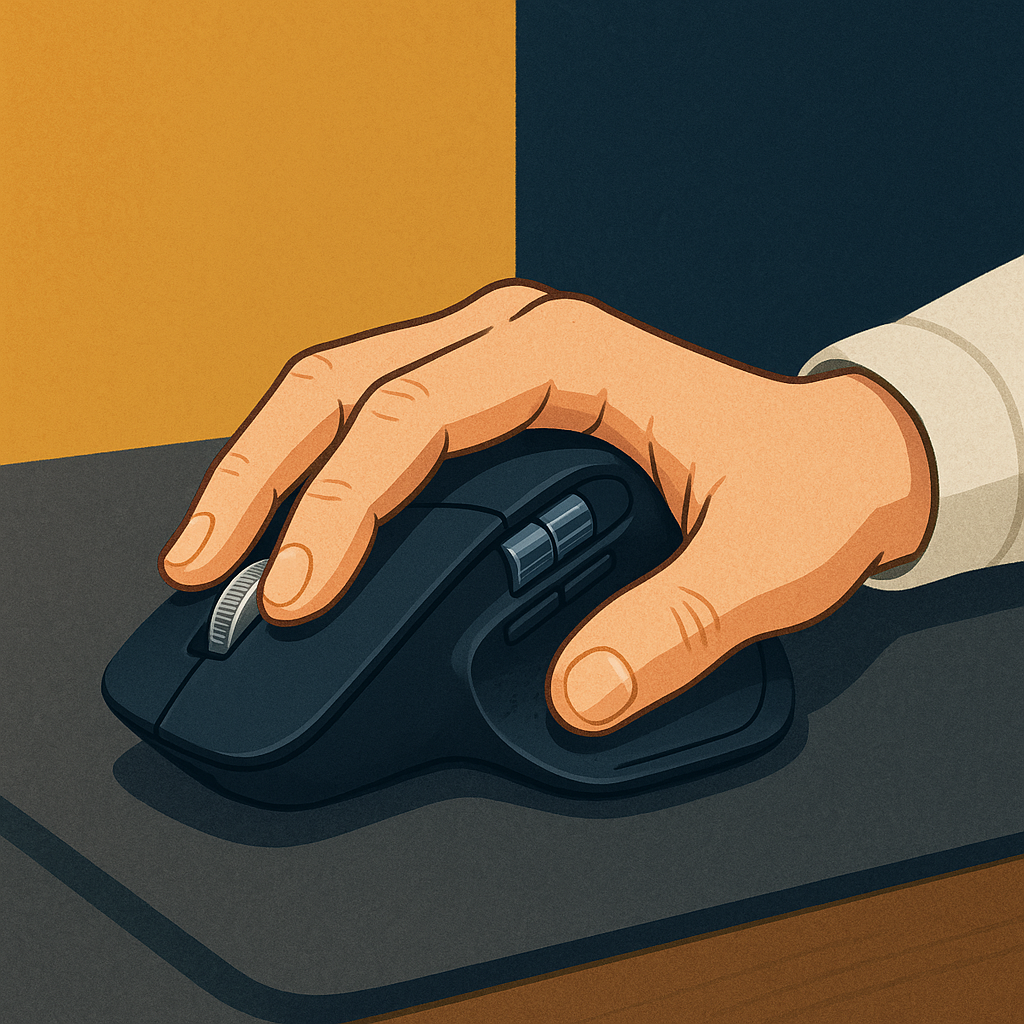
The Logitech MX Master 3S is a tool built for operators who need precision and zero noise. The ergonomic shape holds up through long sessions without the hand fatigue that cheaper mice hand you after an hour. The receipts on the specs are real:
- Quiet Clicks: The click mechanism is 90% quieter than a standard mouse. You can work at midnight without waking anyone up.
- Customizable Buttons: Programmable buttons let you cut repetitive steps out of your workflow — the kind of small savings that compounds across hundreds of sessions.
- Advanced Tracking: An 8,000 DPI sensor tracks on virtually any surface, including glass. No mousepad required.
The MX Master 3S is not a flashy purchase. It's a quiet one that compounds over time, trimming friction from your day while you stay focused on work that actually moves the needle.
MX Mechanical: The Quiet Typist's Dream
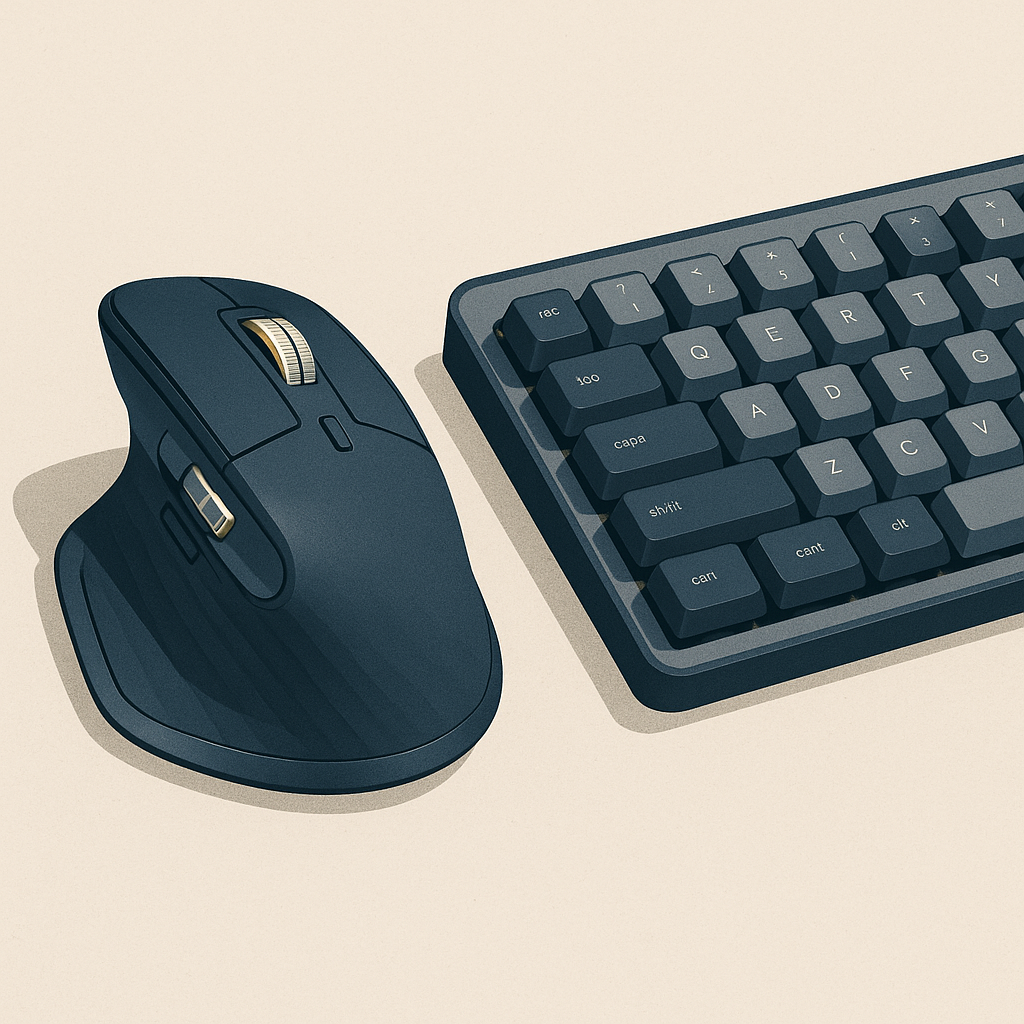
Pair the MX Master 3S with the MX Mechanical keyboard and you have a desk setup that whispers. You get the tactile feedback of a mechanical keyboard — the kind that actually tells your fingers a keystroke registered — without the clatter that drives everyone else in the room out of their mind.
- Low-Profile Keys: Mechanical switches with a quieter sound profile. The feel is there; the noise is not.
- Wireless Freedom: Bluetooth or USB receiver. Either way, the cables are gone and the desk stays clean.
- Backlit Keys: Adjustable backlighting so you can work in any lighting condition without hunting for keys.
If you're running multiple projects and need your tools to keep pace, this keyboard earns its place. Every keystroke counts and none of them announce themselves to the room.
Building Your Income System
The hardware is only part of the picture. The real answer is the system you build around it. Whether you're developing passive income websites or automating content with AI, the right setup reduces the drag on your day. Here's where to start:
- Choose the Right Tools: Hardware like the MX Master 3S and MX Mechanical removes friction before you even open your first file of the day.
- Set Up Your Workspace: A clean, organized desk cuts distractions. Less clutter means more output per hour, and that compounds.
- Automate Repetitive Tasks: Software handles the mundane work. You handle the decisions. That's the split that lets the system run while you sleep.
- Track Your Progress: Measure what's working. Adjust what isn't. A system that doesn't get reviewed stops compounding and starts coasting.
These four steps build the foundation. They apply whether you're starting from scratch or scaling something that already has traction.
The Real Answer: Why This Combo Matters
Choosing the MX Master 3S and MX Mechanical is not about owning the latest hardware. It's about building owned productivity — a desk setup that supports the system underneath it. These tools reduce the small daily frictions that, left unchecked, quietly drain hours from your week.
Ready to take the next step? Drop these tools into your setup and pay attention to what changes in the first two weeks. For more on building systems that generate owned traffic and income, check out the resources at The Silent Webmaster.
The decisions you make at your desk today determine what runs while you sleep tomorrow.
Advanced Customization Techniques for MX Master 3S and MX Mechanical
Both devices have more under the hood than most people use. Getting into the advanced settings is where the real efficiency gains show up — the kind that compounds quietly across every work session.
MX Master 3S: Tailoring Your Experience
- Application-Specific Customization: Logitech Options software lets you assign different button functions per application. Set the thumb button to switch tabs in your browser, then reassign it to a tool shortcut when you open your design software. Same button, different job.
- Gesture Controls: A simple swipe or press can switch desktops, open task views, or control media. Once it's set up, you stop thinking about it — it just works.
- Adjustable DPI Settings: Drop to a lower DPI for precise graphic work. Bump it up for general browsing. Matching DPI to the task is a small adjustment that pays off every day.
MX Mechanical: Optimizing Key Functions
- Remapping Keys: Reassign keys to functions you actually use. Useful for coding shortcuts or data entry sequences you repeat dozens of times a day.
- Macro Programming: Program a single key to insert a frequently used text block or run a command sequence. That's time back in your pocket on every repetition.
- Lighting Profiles: Set different backlighting profiles for different times of day or types of work. It's a small thing that keeps your focus where it belongs.
Integrating the Combo into a Remote Work Environment
For remote operators, this setup does something specific: it keeps the desk calm. Here's how to wire it into your routine so it stays that way.
Creating a Distraction-Free Zone
- Ergonomic Positioning: Place the mouse and keyboard so your wrists sit in a natural position. Reduced strain over a long session is a real, measurable difference by hour three.
- Noise Isolation: Both devices run quiet. If you share space with anyone, that matters more than the spec sheet suggests.
- Wireless Setup: No cables means a cleaner desk. A cleaner desk means fewer things pulling your attention sideways.
Enhancing Collaboration and Communication
- Seamless Device Switching: Both devices support multiple connections. Switch between your laptop, desktop, or tablet without re-pairing. That's a friction point most people don't notice until it's gone.
- Quick Access to Communication Tools: Map a button or key to open Slack or Zoom directly. When your team needs you, you're one press away instead of three clicks deep.
FAQs: Maximizing the MX Master 3S and MX Mechanical
A few questions that come up consistently once people have the setup running.
How can I extend the battery life of these devices?
Both devices have solid battery lives out of the box. Turn off the backlighting when you don't need it and use the physical power switch when you step away. Those two habits alone stretch the charge noticeably.
Can these devices be used for gaming?
You can use them for gaming. The MX Master 3S tracks precisely and the MX Mechanical keys are responsive. That said, they're built for productivity work, not competitive gaming — they won't have the polling rates or switches that dedicated gaming peripherals carry.
What should I do if I experience connectivity issues?
Check that both devices are charged and within range of the receiver or Bluetooth source. Re-pairing clears up most issues. If the problem persists, switching from Bluetooth to the USB receiver usually settles it.
Key Performance Indicators (KPIs) for Measuring Productivity
If you want the receipts on whether this setup is actually moving your output, track these three numbers before and after you make the switch:
- Task Completion Time: Clock how long specific tasks take. If the number drops after two weeks with the new setup, that's the system working.
- Error Rate Reduction: Count corrections in your coding or data entry work. Fewer errors per session means the keyboard is doing its job.
- User Satisfaction: Run a simple self-assessment weekly. If you're less frustrated at the end of a long session, that's a real signal — not a soft one.
Tracking these keeps the system honest. You're not guessing whether the setup helps. You have the numbers.
Maximizing Workflow Efficiency with MX Master 3S and MX Mechanical
Once the hardware is configured, the next step is wiring it into how you actually manage your day. Here's where operators who run multiple projects see the biggest returns.
Streamlining Task Management
- Customizable Workflow Shortcuts: Assign mouse buttons or keyboard keys to open your task management software or jump between project tabs. The seconds saved per switch add up to real minutes by end of day.
- Automated Task Execution: Use macros to handle routine outputs — standard email responses, compiled reports, repeated formatting. That work runs while you focus on decisions that actually require you.
Enhancing Digital Organization
- Folder and File Navigation: Map mouse gestures or keyboard shortcuts to your most-used folders. Fast file retrieval is a small thing that compounds across every working hour.
- Document Editing and Review: Customize keys for copy, paste, undo, and your most-used editing functions. Fewer hand movements per edit means faster review cycles and fewer mistakes.
Set this up once and the system runs quietly in the background — exactly the way a good desk setup should.
Disclosure: this article may contain affiliate links. If you buy through them, we may earn a small commission at no extra cost to you.