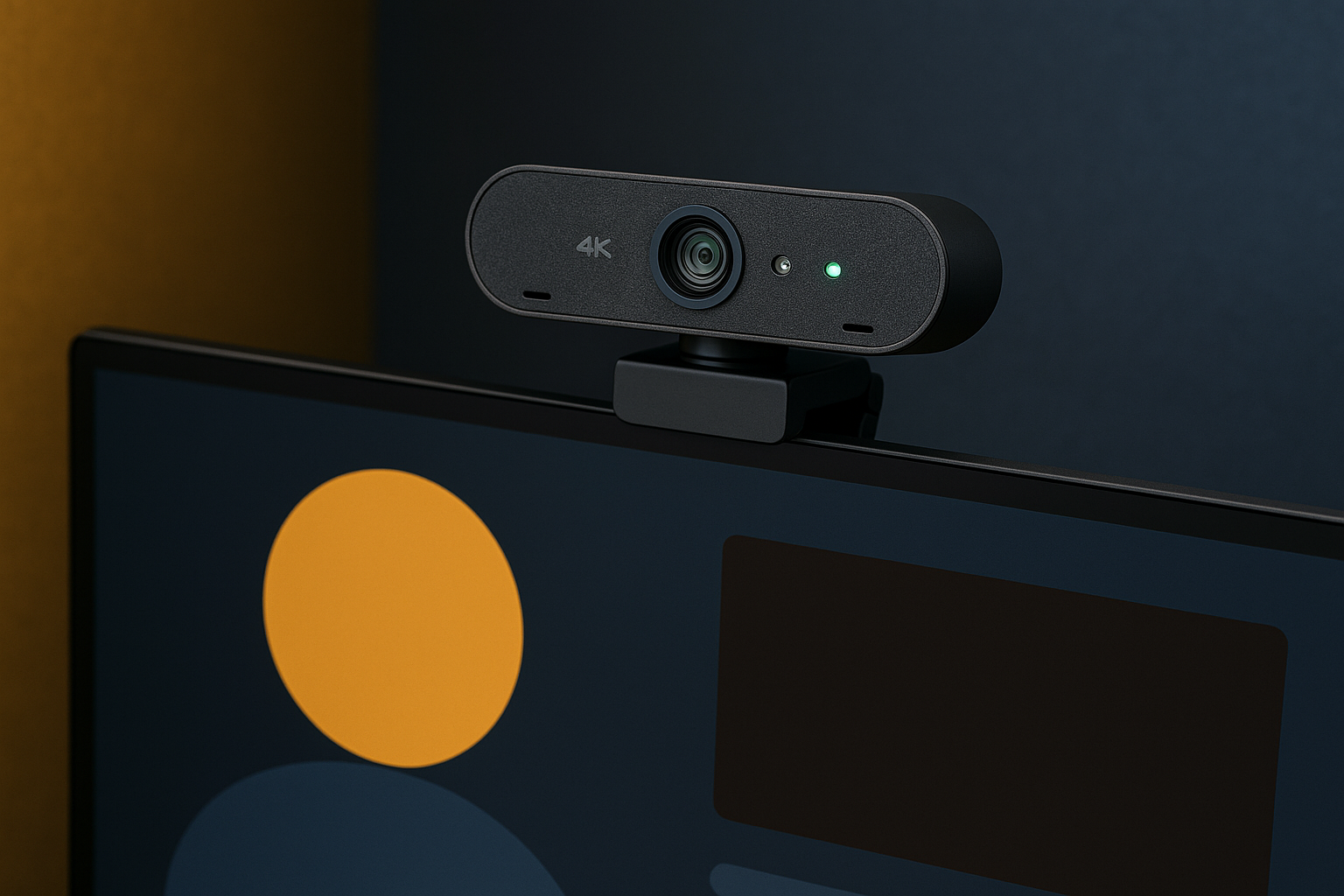
Logitech Brio 4K Webcam: Setup for a Faceless-to-Face Transition
Logitech Brio 4K Webcam: Setup for a Faceless-to-Face Transition
Some creators run a site for years without ever showing their face. Then one day they decide to step on camera — and the whole thing shifts. The Logitech Brio 4K Webcam is the piece of gear that makes that shift clean. Not because it looks impressive in a box, but because it produces the kind of image quality that holds attention. And when you hold attention, your owned traffic compounds into something the receipts can actually prove.
Why the Logitech Brio 4K Webcam?
One creator built a food blog to over half a million monthly visitors — no face, no team, just a system running while she slept. When she finally decided to step in front of a camera, she reached for the Brio 4K. The real answer to why is simple: clarity builds trust, and trust is what turns a viewer into a subscriber.
The Brio 4K delivers that clarity through HDR and RightLight 3 — features that adjust to your environment so you don't have to fight your lighting setup every session. When your video looks right, viewers stay longer. Longer sessions mean stronger engagement signals. Those signals compound, and the system keeps working while you sleep.
Setting Up Your Logitech Brio 4K
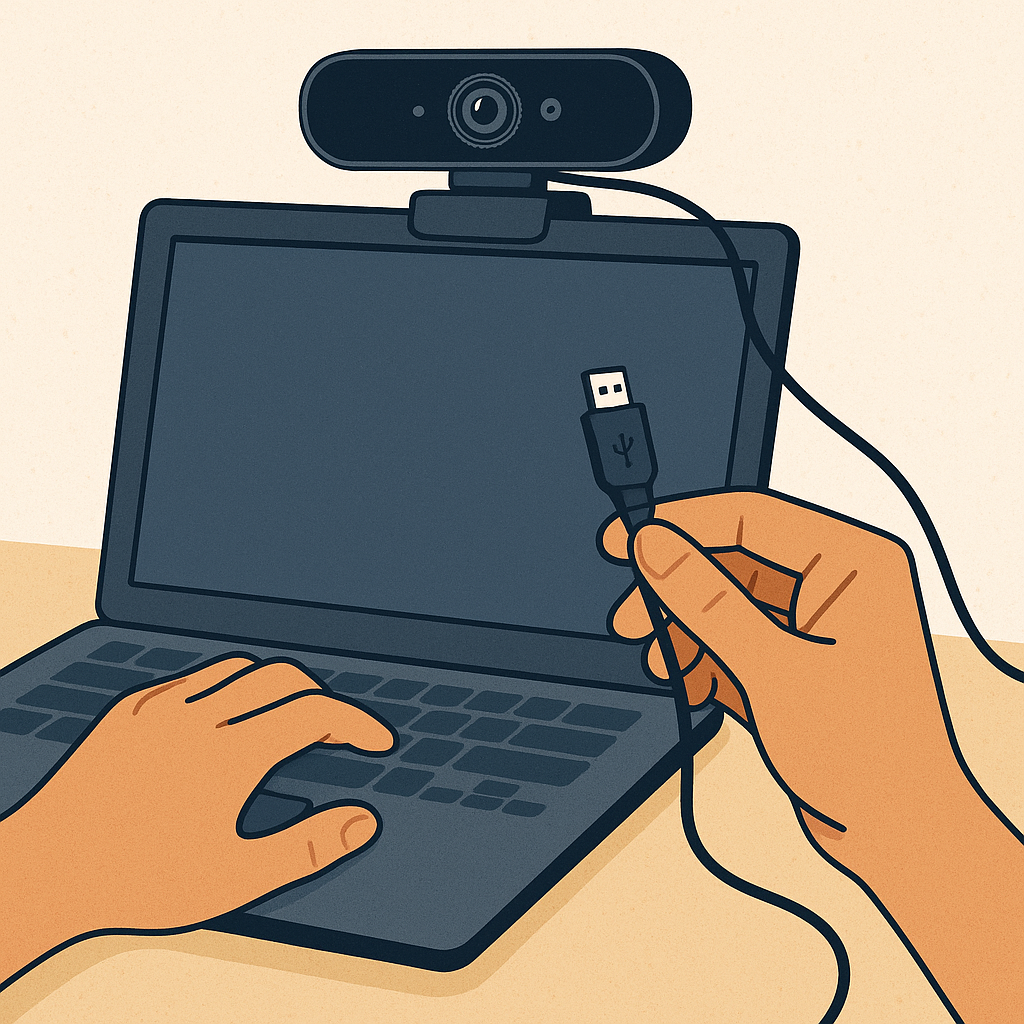
Here's how to get the Brio 4K running properly from day one. Each step matters — skip one and you leave quality on the table.
- Unboxing and Initial Setup: Plug the webcam into your computer via USB. It's plug-and-play — no drivers, no installation wizard. Connect it and it works.
- Software Installation: Download Logitech G HUB for full control over your settings. From there you can adjust field of view, resolution, and background removal — the details that separate a professional-looking feed from a basic one.
- Adjusting Settings: Inside G HUB, set your resolution to 4K and switch on HDR. If your room lighting shifts during the day, HDR handles the compensation automatically.
- Positioning the Webcam: Mount it on your monitor or a tripod at eye level. That angle reads as natural on camera. Anything lower and you're looking down at your audience — anything higher and you lose the connection.
Get those four steps right and you have a setup that captures attention and holds it — owned traffic you built without renting someone else's platform.
Lighting: The Key to Professional Quality
Even a 4K sensor can't fix bad light. The Logitech Litra Glow is the straightforward fix here. It delivers consistent, soft light that works with the Brio 4K's HDR rather than against it.
Position the Litra Glow level with or just behind your camera. That placement eliminates the shadows that make faces look flat and gives the webcam's HDR system clean data to work with. The result is a feed that looks like you spent real money on a studio — without the studio.
Integrating AI for Content Automation
Once your video quality is dialed in, the next piece of the system is automation. AI tools handle the scheduling, SEO optimization, and response management that would otherwise eat your day. The Silent Webmaster's recommended tools cover the options worth using for AI-driven content workflows.
The real answer here isn't that AI replaces your thinking — it's that AI handles the repetitive parts so your content keeps moving while you sleep. That's how a one-person operation produces output that looks like a team effort.
Next Steps: Building Your System
You have the camera dialed in, the lighting sorted, and AI handling the repetitive work. Now you build the asset underneath it. A passive income website is the kind of owned traffic source that compounds month over month — traffic you don't have to pay for every time someone clicks.
Pick a niche that matches what you actually know. Use Namecheap to lock down your domain and get the site live. The system you build today is the one that generates receipts six months from now, while you're working on something else entirely.
Conclusion: From Faceless to Face-Forward
Stepping in front of a camera after running a faceless operation is a real shift — and the Logitech Brio 4K makes it a clean one. This isn't about the webcam itself. It's about adding a layer to a system that already works, so the receipts get bigger over time. The camera is just the tool. The system is what compounds while you sleep.
If you're ready to make the move, start with the right gear and the right strategy. For the full breakdown on building systems that produce results, visit The Silent Webmaster tutorials.
Leveraging the Logitech Brio 4K for Multi-Platform Streaming
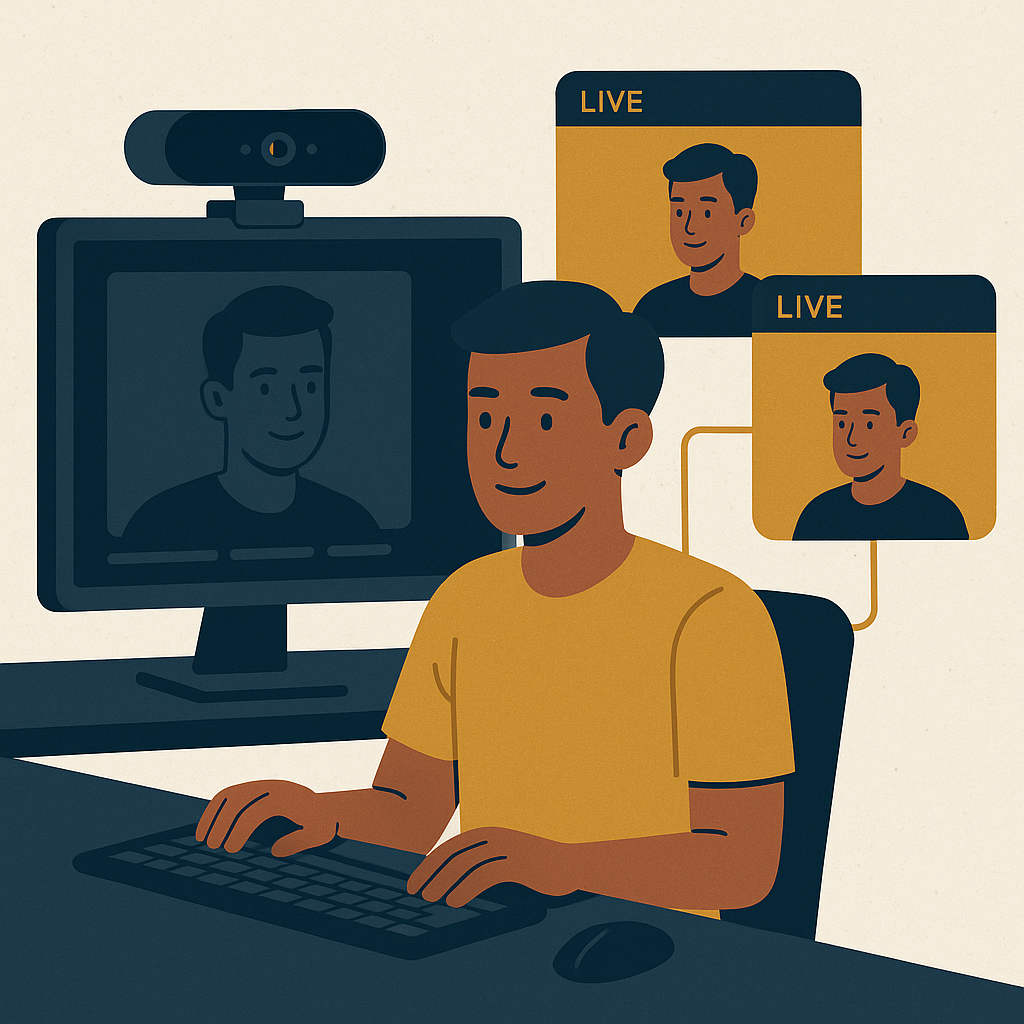
The Brio 4K isn't locked to one platform. You can broadcast across multiple channels at the same time, which means one piece of content reaches more owned traffic without extra production time. Here's how to set that up properly.
Choosing the Right Streaming Software
- OBS Studio: Free, open-source, and capable of streaming to YouTube, Facebook Live, and Twitch simultaneously. The community support is strong and the customization runs deep.
- Streamlabs OBS: Built on OBS with a cleaner interface. It connects directly to Twitch and YouTube and includes widgets that give your stream a more polished look without extra design work.
- Restream: Sends your stream to more than 30 platforms at once and gives you analytics across all of them. That data tells you where your audience actually is — which is where you focus next.
Optimizing Your Stream for Different Platforms
Every platform has different specs and a different audience. Match your setup to each one and you stop leaving reach on the table.
- Resolution and Bitrate: YouTube supports full 4K. Other platforms cap out lower. Set your resolution and bitrate inside your streaming software to match each platform's ceiling — pushing more than it can handle just creates lag.
- Engagement Tools: Use what each platform gives you. Twitch has chat overlays. YouTube has Super Chat. These tools keep viewers in the conversation, which the algorithm rewards.
- Content Format: Twitch audiences want interaction. LinkedIn audiences want information. The same stream doesn't work everywhere — adjust the format, not the camera setup.
Creating a Cohesive Brand Image with the Brio 4K
When you go face-forward, consistency is what makes you recognizable. The Brio 4K gives you the tools to control how you look across every piece of content you produce.
Customizing Your Video Background
The Brio 4K's background removal works without a green screen. Pair it with the right software and your background becomes part of your brand.
- Virtual Backgrounds: Tools like Zoom or XSplit VCam let you drop in a virtual background that matches your brand colors or theme. Keep it consistent and viewers start to associate the look with you.
- Physical Backdrops: A simple backdrop in your brand's color costs less than a hundred dollars and reads cleanly on 4K. It's a one-time setup that shows up in every video you shoot.
- Lighting Consistency: Same light position, same intensity, every session. That visual consistency is what makes your content feel like a system rather than a series of one-offs.
Branding Through Content
The camera is only part of it. What you say and how you say it has to match across every platform you publish on.
- Consistent Messaging: Same language, same tone, every time. Audiences recognize consistency and they trust it — that trust is what turns a viewer into owned traffic.
- Regular Updates: A content calendar keeps you on schedule. Showing up regularly keeps you in front of your audience between the bigger pieces of content.
- Personal Connection: Behind-the-scenes moments and honest takes on your process make the brand feel real. That's what separates a creator people follow from a channel people forget.
FAQs: Common Challenges and Solutions
A few issues come up consistently when people first integrate the Brio 4K into their workflow. Here are the ones worth knowing before you run into them.
Why is my video quality not as expected?
Solution: Check that your software is set to the highest available resolution and that your internet connection can actually support 4K output. Keep your webcam drivers and G HUB updated — outdated software is the most common cause of quality drops.
How can I reduce lag during live streams?
Solution: Drop your resolution and bitrate until the lag clears. Close any applications running in the background and confirm your connection is stable. A wired ethernet connection beats Wi-Fi every time for live streaming.
What if my background removal isn't perfect?
Solution: The real answer is almost always lighting. More even light means fewer shadows, which makes it easier for the software to separate you from the background. Adjust your light position first, then fine-tune the software settings.
KPIs and Metrics to Monitor
The system only improves if you're tracking the right numbers. These are the metrics that tell you whether your face-forward content is actually working.
- Engagement Rate: Likes, comments, and shares tell you whether the content is landing. If engagement drops, the content format needs to change — not the camera.
- Viewership Growth: Track follower and subscriber counts across every platform month over month. That growth rate tells you whether your reach is compounding or stalling.
- Conversion Rates: Count the viewers who take a real action — a newsletter signup, a product purchase, a link click. That number is the receipt. Everything else is just reach.
Track those three numbers consistently and you'll know exactly where to put your next hour of effort. That's how the system stays sharp while it keeps running in the background.
Disclosure: this article may contain affiliate links. If you buy through them, we may earn a small commission at no extra cost to you.